Here are some Claude code tips that I have been reflecting on for over half a year, wishing I had known them sooner.
They have saved me a significant amount of time and allowed me to enter a smooth state while coding and creating content.
The article is divided into three parts:
1. Three Startup Methods
2. Tips for Use During Runtime
3. Using Companion Software to Address Human-Machine Collaboration Efficiency
All of this is designed to help you focus more on programming and other tasks at hand.
I wish someone had sent me this tutorial a few months ago to help me avoid detours and achieve a smooth experience:
1. Save this guide, and spend 30 minutes this weekend mastering Claude code tips.
2. Share it with anyone who asks you, "I find Claude code difficult, but I have never tried it."
Now, let's start with the simplest way to get Claude up and running (yes, even starting up has its tricks)
Claude Startup: Three Methods
Simple Startup
Starting up Claude is a very simple task, easy on the command line.
But for friends who are not fans of command-line tools, Claude code is actually a visual interface.
How is this achieved?
On this website: https://claude.com/download, under Claude Desktop, follow the steps below to get a visual Claude.
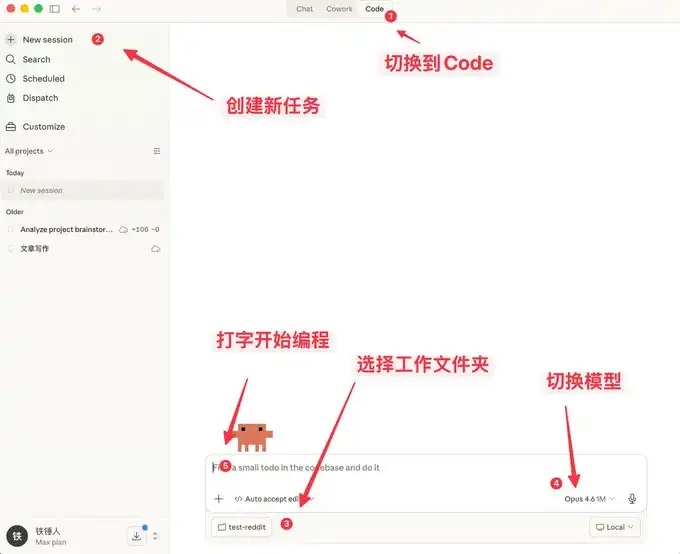
Here you can not only chat, but also enjoy many features similar to OpenClaw.
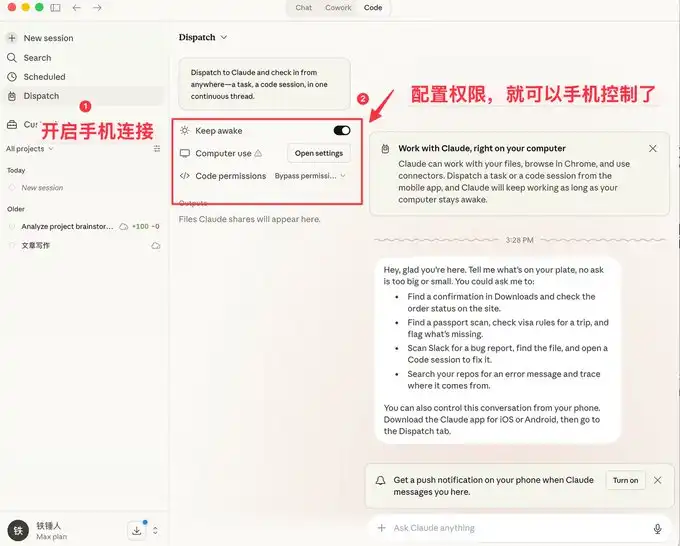
A visual interface is more user-friendly for the general public, but developers prefer the command-line startup method.
Below are some quick-start commands to introduce to everyone.
Command-Line Startup
On Specific Historical Startup
When using Claude code, we often encounter situations where a reboot is necessary, and each time we restart, we need to restore the previous context:
I used to always use:
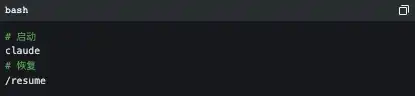
However, the official documentation actually provides some very nice startup commands:
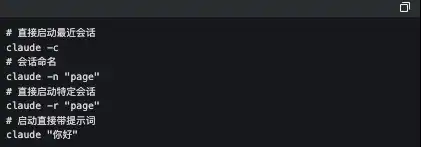
Among these, the one I frequently use is claude -c, a short command that has saved me a lot of time.
-p to Start in an Automated Way
Claude Code can be started in a UI-less manner; simply use the following command:

It is worth noting that if you want to use a local subscription token for automated tasks, currently only this method can be used.
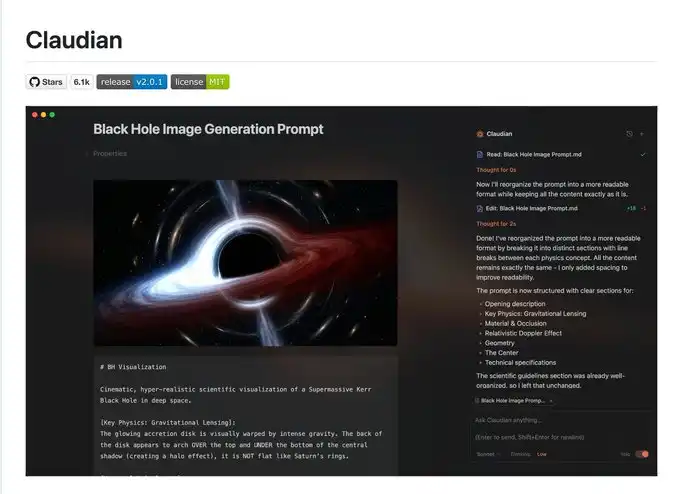
Below is the well-known Obsidian + Claude Code tool, which is a self-made SDK for using a local subscription token in this way.
I admit that what I said earlier may be a bit complex, so let's talk about a few simple commands used in the process.
3 Handy Tips to Know While Running Claude Code
Gracefully Stop and Roll Back Tasks
When you first start using Claude code, you may tend to use Ctrl+C to close the current dialogue, only to unintentionally close Claude altogether. The correct way is to press the Escape key once to immediately interrupt the dialogue and prevent things from escalating.
If Claude suddenly becomes unresponsive, you can press Escape twice, and then a list will pop up:
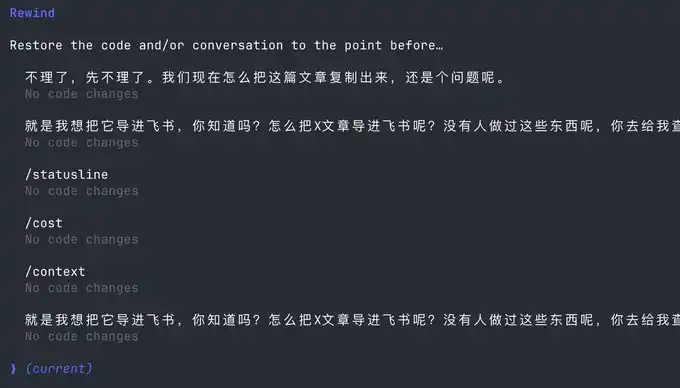
You can use this feature to go back to any checkpoint, avoiding Claude's code messing things up.
Stay with Claude Command Execution
Sometimes we want to run a test command ourselves, but to stay current with Claude, we have to open another command window.
Actually, we can use the following syntax:

Context Management
As the conversation continues, the more chat history we accumulate, the more tokens are consumed in each interaction, causing Claude's code to run slower and slower.
You have two choices: open a new window or use the /clear command
A simple command, clearing out unused contexts, is like closing 20 Chrome tabs at once.
But what if I don't want to clear out these contexts? Use /compact to compress them a bit.
It's like giving Claude a Red Bull to boost his brain.
Hope the above tips can help you use Claude's code more smoothly.
However, this is far from enough. Since Claude's code is a command-line tool, no matter how many commands you learn, it's a mental burden.
Fortunately, many complementary software solutions have emerged in the community to address the following pain points:
1. There is no mature method for autocomplete, leading to low programming efficiency
2. People type relatively slowly, resulting in low autocomplete efficiency
3. In multitasking processes, people are fragmented, unable to improve productivity
If any of the above is one of your pain points, please continue reading.
Using Complementary Software to Solve the Human-Machine Collaboration Problem
Now, we are starting to realize that humans are falling behind the speed of machines. To address this issue, a series of software solutions has been introduced in the community.
First, we need a mature programming methodology:
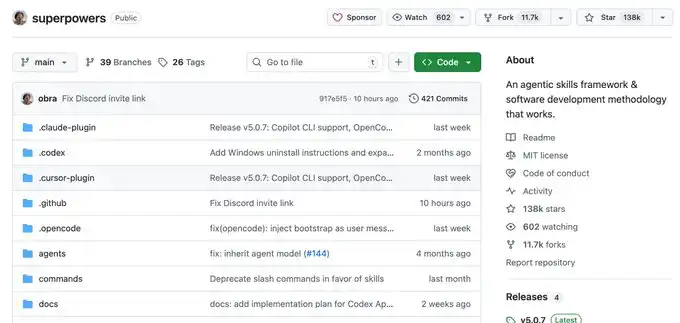
Superpowers
When an ordinary person vibes coding, they do it haphazardly, coding whatever comes to mind. This Skills is a programming workflow summarized by an old programmer.
He has packaged top software engineering best practices into a one-click Skills. From requirement gathering, spec confirmation, detailed planning, to TDD test-driven development + automatic code review, the entire process follows a mandatory structured workflow, enabling AI to output high-quality, maintainable code like a mature engineering team, significantly increasing the one-pass rate and eliminating the need for repeated firefighting.
This project already has 138k Stars; you can learn more details about it yourselves, and I won't elaborate further.
Once you have a set of mature programming Skills, you will find that it requires you to input information frequently. This is when you realize that your typing speed becomes your efficiency bottleneck.
You might be thinking, Is there any software available that can quietly transcribe whispered office conversations into text with extremely accurate Chinese and English recognition?
Yes, there is, and there are many of them, but I only recommend two: typeless and Beankey Input Method.
Voice Input Software
The advantage of the Beankey Input Method is that it is fast, the Chinese and English recognition is decent, and most importantly, it is free. It's a bit like the Android system, and I also use it.
However, typeless, apart from being paid, doesn't have many drawbacks and is worth trying out.
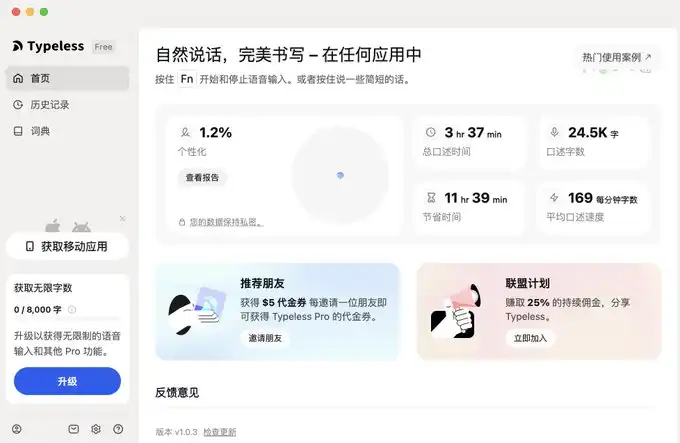
I have provided the links below.
For typeless, the link is: https://www.typeless.com/?via=lxfater
Beankey Input Method is still in the testing phase, and you can find the installation package by searching for it.
Once we start using voice input, we will be able to provide more context to Claude code, and the one-pass rate will continue to increase. At this point, the bottleneck of efficiency lies in the execution time of Claude code.
We can run multiple instances of Claude code simultaneously; however, at this point, our bottleneck is the human multitasking issue of losing context.
Solve Your Context Switching Problem
First off, I recommend a software called Cmux:
It is a macOS native terminal built on top of Ghostty, designed for running multiple coding agents simultaneously: vertical tabs + smart sidebar, flexible splitting, smart notification highlights, built-in browser splitting + Socket API.
This is an open-source project: https://github.com/manaflow-ai/cmux
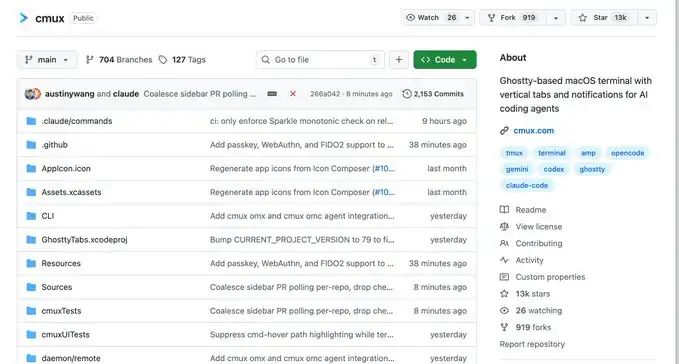
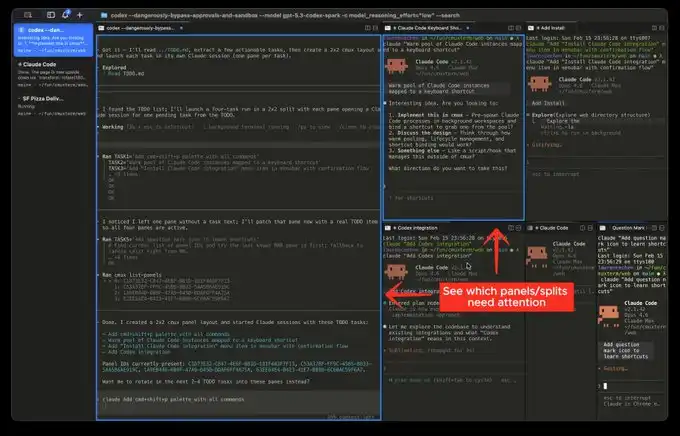
My favorite feature is the split-screen function, but once I split the screen, I lose track of which window is for what task.
Fortunately, this software directly highlights a specific terminal area to help you switch to the corresponding window promptly.
But the next software I'm going to introduce will make this type of switching extremely smooth:
This is the product that has been quite popular recently, called Vibe Island
Isn't the UI attractive? However, the most impressive aspect of this product is its support for switching between various tools
And each switch will automatically invoke, bring forward the window of the respective APP, then you can type away.
In theory, as long as you switch fast enough and have enough windows open, it will continuously push the windows that need attention in front of you. It gives you a feeling of being on an assembly line processing tasks.
Finally
I hope this content is helpful to you. This is relatively beginner-friendly, but actually considered common knowledge for programmers.
Still, I hope it can assist you. If you find this content helpful!
